> ## Documentation Index
> Fetch the complete documentation index at: https://docs.agd.sa/llms.txt
> Use this file to discover all available pages before exploring further.
# Starting Point
> This page will guid you through the process of creating an account with Agd Ejar and integrating with our APIs
## Before You Start
In order to use Agd Ejar's APIs, make sure you already have:
* Commercial registration (CR) issued by ministry of commerce (CR).
* Your CR included activity code 682010 (Real Estate Brokerage). [read more](https://www.stats.gov.sa/en/isic4/1000?page=460)
* FAL lisance from REGA. [read more](https://rega.gov.sa/en/electronic-services/fal-real-estate-brokerage)
* An active account in [Ejar.sa](https://eservices.ejar.sa/en/bo-registration/welcome).
* An active account with us at Agd Ejar 😊
## Enabling ECRS
To create an account with Agd Ejar, first you need to enable "External Contract Registration Service" (ECRS) for your Ejar's account, to do so please contact us at [b2b@agd.sa](mailto:b2b@agd.sa) with the following information:
* Admin's ID number (must be a Saudi & has Nafath access)
* Saudi Commercial Registration (PDF)
* Saudi Mobile Number
* Email
Then we will send your information to Ejar to to request enabling ECRS for your account.
It might takes \~ 3 - 7 business days to enable ECRS for your account by Ejar's team.
## ECRS credentials
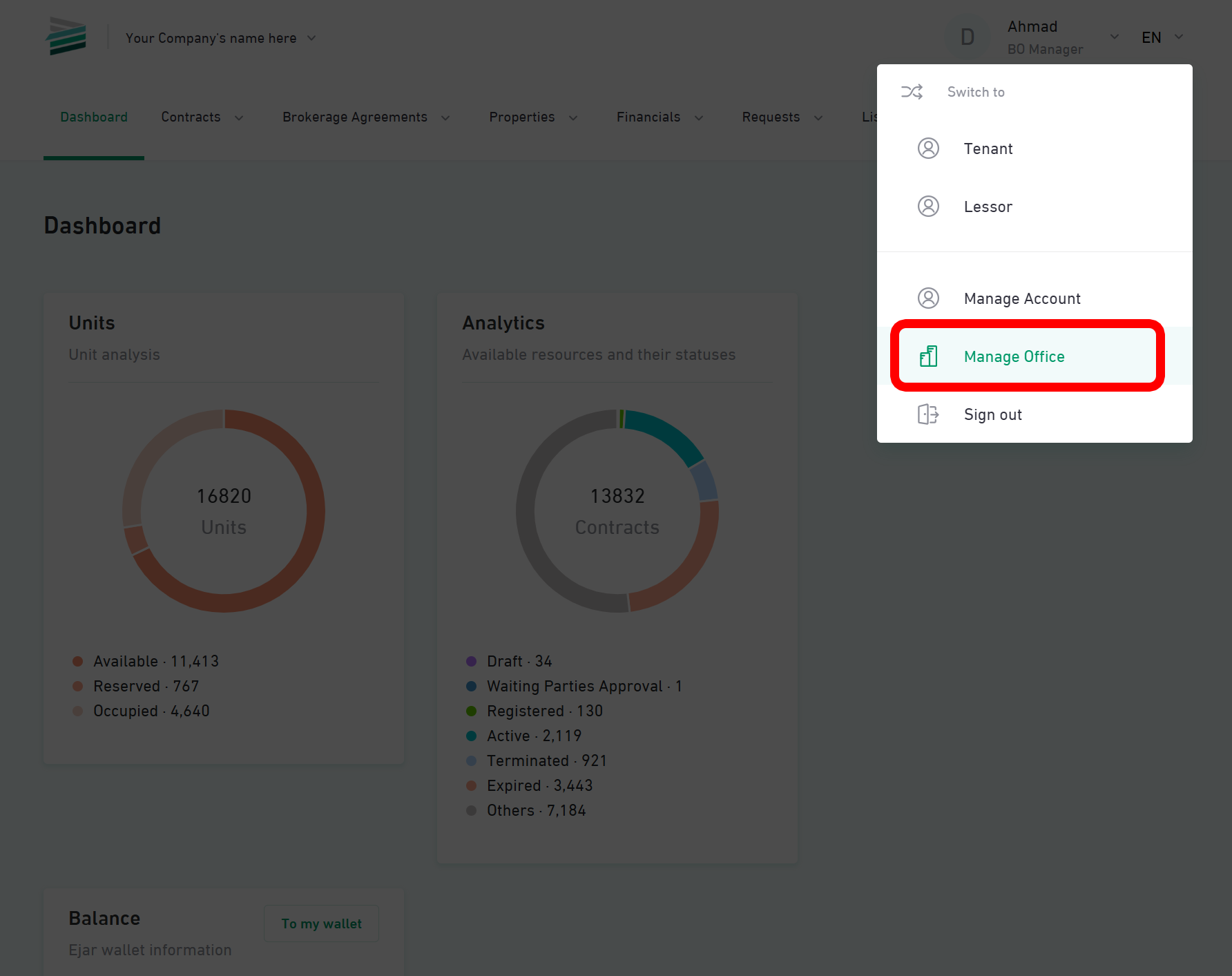
Once ECRS is enabled, [login](https://eservices.ejar.sa/en/) into your Ejar account then click on your name in the top right corner and select "Manage Office"
 From the left sidebar, select "External Registration" then click on "Create"
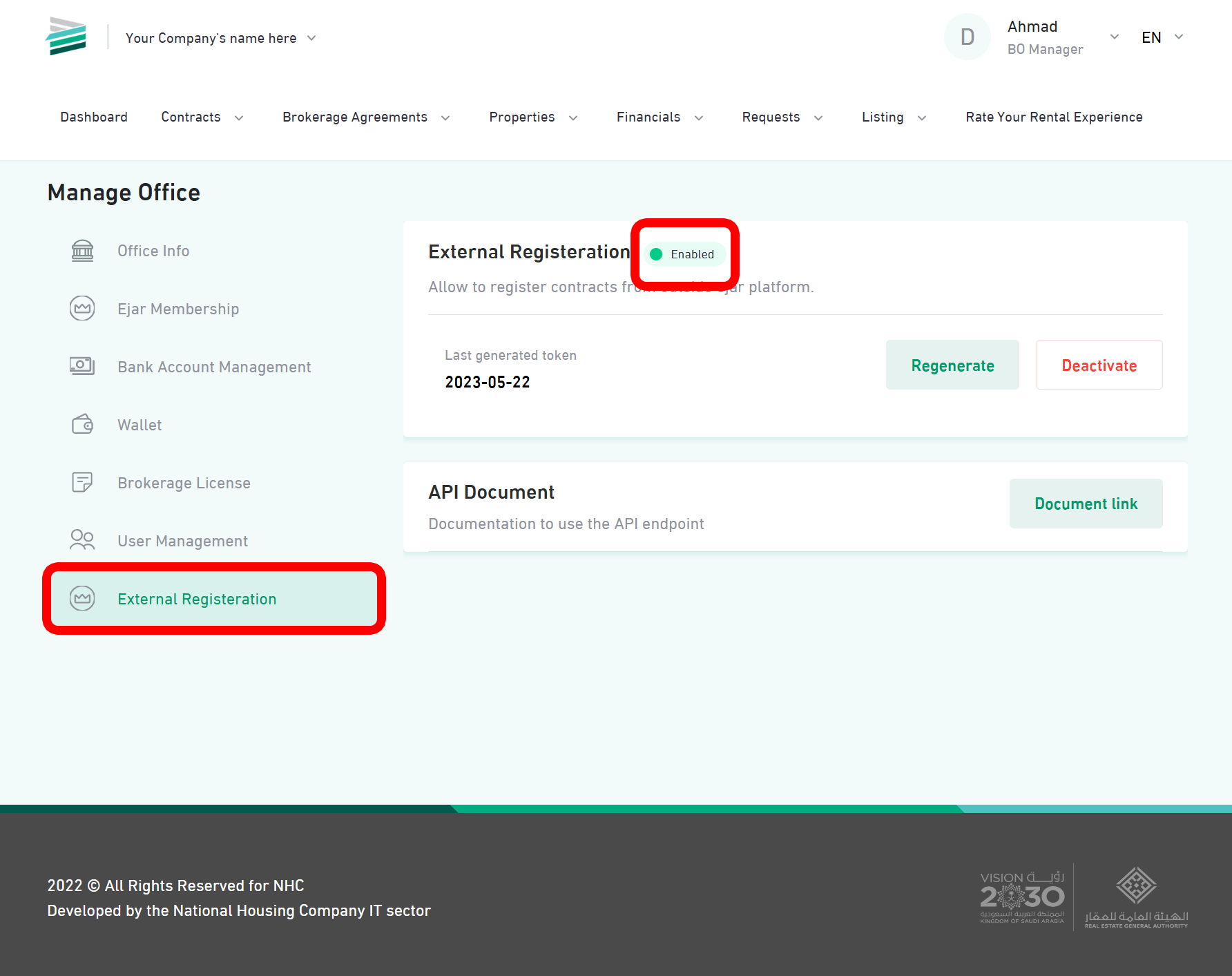 If you didn't see the "External Registration" option, that's mean ECRS is not enabled for your account yet, please contact us at [b2b@agd.sa](mailto:b2b@agd.sa)
## Integration Steps
Follow these steps to quickly integrate with Agd Ejar API.
### 1. Get Your Credentials
1. Contact our support team at [b2b@agd.sa](mailto:b2b@agd.sa)
2. Provide your organization details
3. Receive your `client_id` and `client_secret`
Once you have your credentials, test the authentication:
```bash theme={null}
curl --request POST \
--url 'https://app.agdejar.sa/oauth/token' \
--header 'Content-Type: multipart/form-data' \
--form 'grant_type=client_credentials' \
--form 'client_id=your_client_id' \
--form 'client_secret=your_client_secret' \
--form 'scope=read'
```
### 2. Explore the API
1. Access our [Postman Collection](https://documenter.getpostman.com/view/39514920/2sAY4yfMHr)
2. Import the collection into your Postman
3. Set up your environment variables
4. Test different endpoints
Check our code examples in multiple languages:
```bash Curl theme={null}
# List Properties Example
curl --request GET \
--url 'https://app.agdejar.sa/tenant/v1/properties' \
--header 'Accept: application/json' \
--header 'Authorization: Bearer YOUR_ACCESS_TOKEN'
```
```python Python theme={null}
import requests
headers = {
"Accept": "application/json",
"Authorization": "Bearer YOUR_ACCESS_TOKEN"
}
response = requests.get(
"https://app.agdejar.sa/tenant/v1/properties",
headers=headers
)
```
```javascript JavaScript theme={null}
const response = await fetch('https://app.agdejar.sa/tenant/v1/properties', {
method: 'GET',
headers: {
'Accept': 'application/json',
'Authorization': 'Bearer YOUR_ACCESS_TOKEN'
}
});
```
## Essential Integrations
Start with these core features to get your integration running.
Learn how to manage properties and units
Start creating and managing contracts
Handle tenant and owner information
Set up secure API authentication
## Best Practices
Follow these guidelines for successful integration:
Implement proper error handling and retries
Understand and respect API rate limits
Monitor API status and uptime
Get help when you need it
## Next Steps
Review our detailed [API Reference](/api-reference/introduction) for comprehensive endpoint documentation.
Check our [FAQ](/faq/introduction) and [Troubleshooting Guide](/faq/common-issues/troubleshooting) for solutions to common problems.
Keep an eye on our [Status Page](https://stats.uptimerobot.com/koyjLJpRaj) for real-time API status updates.
If you didn't see the "External Registration" option, that's mean ECRS is not enabled for your account yet, please contact us at [b2b@agd.sa](mailto:b2b@agd.sa)
## Integration Steps
Follow these steps to quickly integrate with Agd Ejar API.
### 1. Get Your Credentials
1. Contact our support team at [b2b@agd.sa](mailto:b2b@agd.sa)
2. Provide your organization details
3. Receive your `client_id` and `client_secret`
Once you have your credentials, test the authentication:
```bash theme={null}
curl --request POST \
--url 'https://app.agdejar.sa/oauth/token' \
--header 'Content-Type: multipart/form-data' \
--form 'grant_type=client_credentials' \
--form 'client_id=your_client_id' \
--form 'client_secret=your_client_secret' \
--form 'scope=read'
```
### 2. Explore the API
1. Access our [Postman Collection](https://documenter.getpostman.com/view/39514920/2sAY4yfMHr)
2. Import the collection into your Postman
3. Set up your environment variables
4. Test different endpoints
Check our code examples in multiple languages:
```bash Curl theme={null}
# List Properties Example
curl --request GET \
--url 'https://app.agdejar.sa/tenant/v1/properties' \
--header 'Accept: application/json' \
--header 'Authorization: Bearer YOUR_ACCESS_TOKEN'
```
```python Python theme={null}
import requests
headers = {
"Accept": "application/json",
"Authorization": "Bearer YOUR_ACCESS_TOKEN"
}
response = requests.get(
"https://app.agdejar.sa/tenant/v1/properties",
headers=headers
)
```
```javascript JavaScript theme={null}
const response = await fetch('https://app.agdejar.sa/tenant/v1/properties', {
method: 'GET',
headers: {
'Accept': 'application/json',
'Authorization': 'Bearer YOUR_ACCESS_TOKEN'
}
});
```
## Essential Integrations
Start with these core features to get your integration running.
Learn how to manage properties and units
Start creating and managing contracts
Handle tenant and owner information
Set up secure API authentication
## Best Practices
Follow these guidelines for successful integration:
Implement proper error handling and retries
Understand and respect API rate limits
Monitor API status and uptime
Get help when you need it
## Next Steps
Review our detailed [API Reference](/api-reference/introduction) for comprehensive endpoint documentation.
Check our [FAQ](/faq/introduction) and [Troubleshooting Guide](/faq/common-issues/troubleshooting) for solutions to common problems.
Keep an eye on our [Status Page](https://stats.uptimerobot.com/koyjLJpRaj) for real-time API status updates.